How to Create a Forex Demo Account with Broker XM
For those of you interested in trying the trading atmosphere at XM, you can first open an XM demo account.
What is a Demo Account?
A demo account is one of the most useful learning media for forex, very beneficial for practicing skill trading directly. It doesn't just function as a simulation program, a demo account also provides chart and real-time price facilities, in accordance with what actually happens in the market. On the other hand, the funds you manage in a demo account are not real, as they are only virtual funds where profits or losses cannot be realized.
Therefore, a demo account can provide several uses at once, including:
- Simulating trading with the forex market.
- Learning the features of forex trading devices and how to use them.
- Performing analysis with technical indicators.
- Learning to open, close, and modify transactions.
- All facilities can be obtained for free without the risk of loss.
Because it is based on the real forex market, trading in a demo account can provide a picture as close as possible to trading in a real account. The difference is, execution in a demo account is usually relatively smoother, because orders are only virtual and are not actually processed. Conversely, order execution in a real account can be slightly problematic (delayed) when the market is busy. This is because the number of incoming orders usually increases rapidly at almost the same time, which will cause problems on the broker's server.
Why XM Demo Account?
- The XM demo account can be obtained for free.
- The XM demo account has no expiration date as long as it is used actively.
- Virtual funds are available in a flexible range, starting from $1000 to $100,000. If you want to optimize the learning process of trading with money management, it is best to choose a fund range that is closest to the amount of your balance in a real account.
- The XM demo account can be accessed anywhere and anytime. You can choose a trading device in desktop, tablet, or mobile versions.
- You can open up to 5 XM demo accounts with just 1 account profile.
So what are you waiting for? If you want to learn forex, immediately register for an XM demo account to get the convenience above.
Guide to Creating an XM Demo Account
Complete the Registration Form
Confused about filling in your data? On the XM demo account registration form, your data must be filled in completely and confirm your email address. How do you do it? See the complete guide.
Guide to Filling in the XM Demo Account Form
1. XM Indonesia Site
Open the XM Indonesia Broker site here. Currently, the appearance of the XM Broker site is like the image below. After the page opens, click the red "OPEN DEMO ACCOUNT" button.

2. Registration Form
On the new page that opens, now a form appears to open a demo account. Keep in mind, in 1 email used to register, it can only be used for a maximum of 5 demo accounts. The Country of residence column is automatically filled in, for example Indonesia. If it is incorrect, select the correct country from the Dropdown.

3. Personal Details
In the first part of this form, fill in your personal data. There are no strict rules for first and last name in Indonesia. However, if you have a surname, fill in the surname in the last name column. As for names consisting of only one word such as "Suryanto", fill in the first and last name: "Suryanto".

4. Trading Account Details
Here you can set the details of the demo account to be created. The current trading platform types are MetaTrader 4 and MetaTrader 5. The advantages of each platform can be compared here.
Standard and XM Zero account types use a lot size of 100,000 (Standard lot), for users of mini lot and micro lot accounts, don't worry because when Trading, the lot size can be adjusted (0.1 for mini lot and 0.001 for micro lot/cent account).
Currency options can be adjusted to taste, leverage available from 1:1 to 1:888 but recommended leverage between 1:100 - 1:200. While the investment amount varies from 1,000 to 5,000,000.

5. Account Password
The password created must be at least 6-15 characters long and must consist of at least 2 combinations between lowercase letters, uppercase letters, and numbers.
For example, "pwdku" is a wrong password, because the length is less than 6 characters. Whereas "PASSWORD" is also wrong even though it consists of 6-15 characters but is not a minimal combination of lowercase/uppercase/numbers.
While "PassWord" and "P455w0rd" can be used as passwords because they consist of 6-15 characters and are 2-3 combinations of lowercase/uppercase/numbers.

6. Confirm Demo Account
If the form has been filled in correctly, a page will appear confirming that you have successfully created a demo account at XM. Next, open the email used to create the XM demo account.

7. Check Email Inbox
Check your email inbox, there should be a confirmation email from XM. If after a few moments you still can't find the confirmation email in your email inbox, try checking the "Spam" or "Bulk" folder.

8. Confirm Email
If you have received a confirmation email from XM, then confirm the email, by clicking "here" or clicking on the red "CONFIRM EMAIL ADDRESS" button.

9. Demo Account Confirmation
Congratulations! The XM demo account has been successfully created. Next, do install MetaTrader to start using your demo account.

Differences Between MetaTrader 4 and MetaTrader 5
What are the advantages of the MetaTrader 4 and MetaTrader 5 platforms? Also read the MetaTrader installation instructions from start to finish to ready for use. Don't choose the wrong platform to use.
MetaTrader 4
XM MT4 - Faster and Better
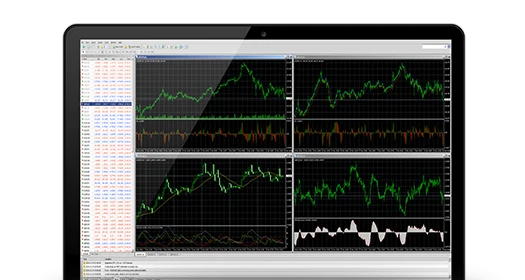
XM is a pioneer in providing the MT4 platform with a primary focus on execution quality. Trading on MT4 with no requote, no rejection, and flexible leverage starting from 1:1 to 888:1.
- 1 login to 8 platforms
- Micro Lot Account (optional)
- Spread as low as 0 pip
- Trading in more than 300 Instruments
MetaTrader 5
XM MT5 - 1 Platform, 6 Asset Classes
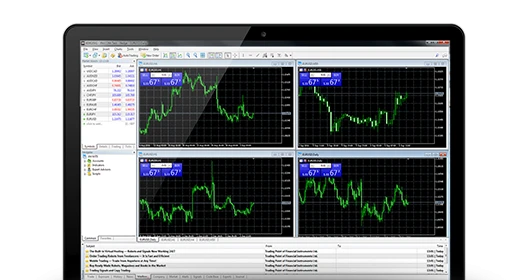
XM MT5 offers all the features that are on XM MT4, with the addition of 300 stock CFDs, making it an ideal platform. Trade forex, stocks, gold, oil, equity indices and cryptocurrencies from 1 platform with no rejection, no requote and leverage from 1:1 to 888:1.
- 1 login to 7 platforms
- More than 80 analysis objects
- Market Depth from Latest Price
- More than 300 Instruments, including stock CFDs, equity index CFDs, forex, CFDs on precious metals, CFDs on cryptocurrencies, and CFDs on energy
Install Meta Trader Application
1. Download MetaTrader
After registration, on the account confirmation page there is a download link for MetaTrader. The platform provided is in accordance with the choice when filling out the form.

2. Alternative Download
If the confirmation page is closed, don't worry. The MetaTrader download process can still be done through the XM Broker site. From the "PLATFORM" navigation, select MetaTrader accordingly. Click "DOWNLOAD" after the new page opens, then the download process will run.

3. MetaTrader Installation File
After the download process is complete, open the folder where the installation file is saved as shown in the example image to the side and double-click on the file to start the installation process.

4. Administrator Account
Make sure the user account on the PC we are using is an Administrator account. If not, enter the Administrator account password in the pop-up that appears.

5. Start Installation
The initial view of the Metatrader installation from Broker XM appears, on this view just click "Next".

6. Installation Process
The installation process will run automatically, we just need to wait until the process is complete.

7. Check Email Inbox
While waiting for the installation process, check your email inbox, there should be a second confirmation email from XM. If you can't find the confirmation email in your email inbox after a few moments, try checking the "Spam" or "Bulk" folder.

This second email contains the MetaTrader ID and Server. Save this information for use in the next step.
8. Choosing the XM MetaTrader Server
After the installation process is complete, a list of servers will appear that must be selected. Use the server as in the confirmation email in step 7. In this example, XMGlobal-Demo 4.

9. Login Demo Account
Now you just need to fill in the Login account, using the MetaTrader ID in step 7. For example, 51237067. While the Password, enter the password when filling out the form.

10. Done!
Congratulations! The XM demo account installation and configuration process is complete. Details of the demo account used can be seen on the left side of MetaTrader as in this image.

11. Initial View of MetaTrader
Example of the initial view of MetaTrader that is ready to use. Next, complete your MetaTrader knowledge in more depth here.
